
Article·10 min
How to Set xTool Material Parameters
When working with a machine connected to xTool Studio, you need to set the material parameters first. Different parameters will produce different finished results. We have prepared recommended settings for different materials based on the specific machine, processing mode, and processing type, so you can easily find the most suitable parameters for each material.
Select Material
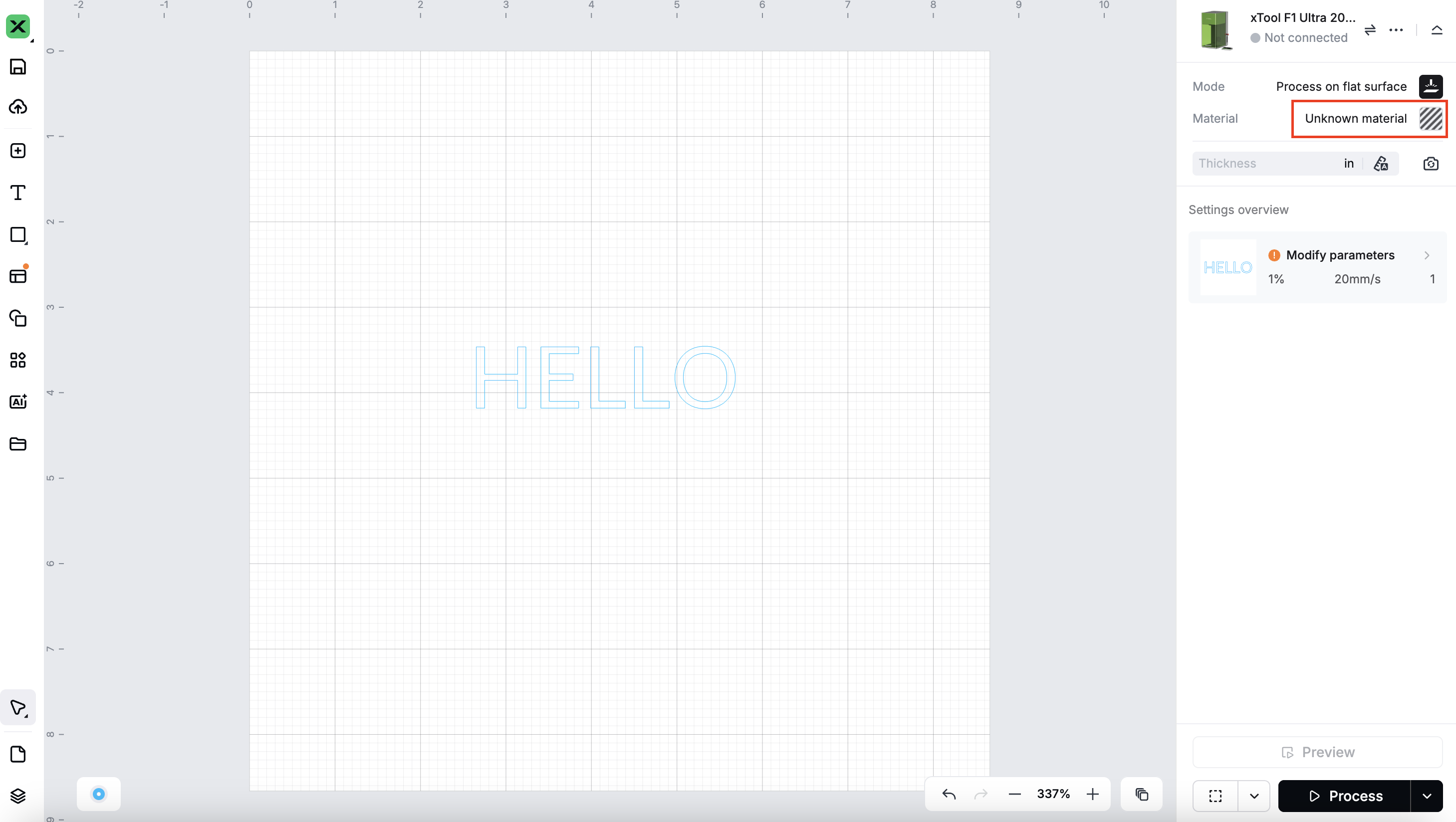
- Click the material entry to open the material selection popup:
- Commonded Materials: Displays the materials you have used, materials you have added, and materials from the device’s consumable package.
- My Materials: Materials you have added and saved will be displayed here.
- Recommended Materials: Officially recommended materials that can be filtered and viewed by different material types.
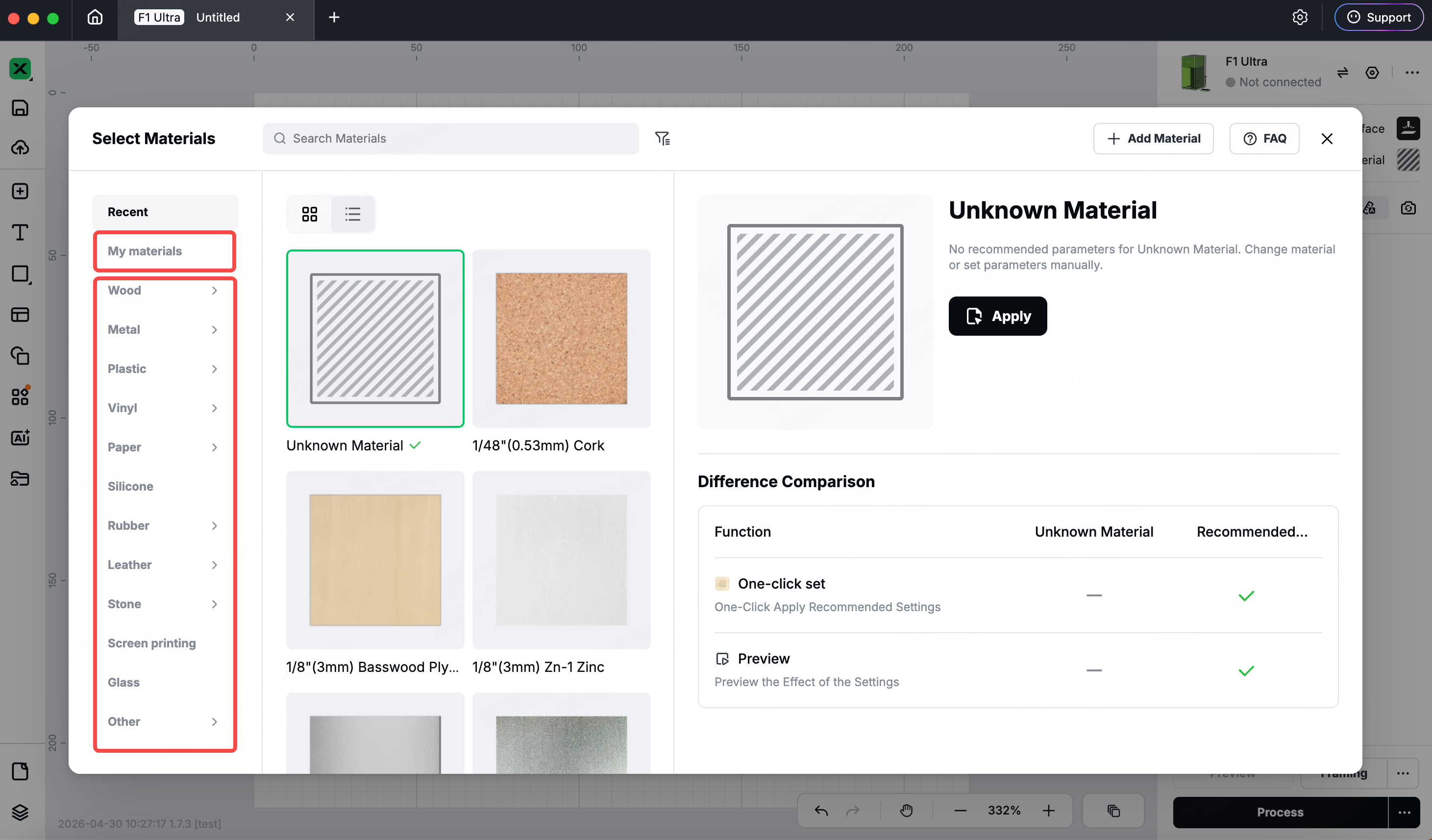
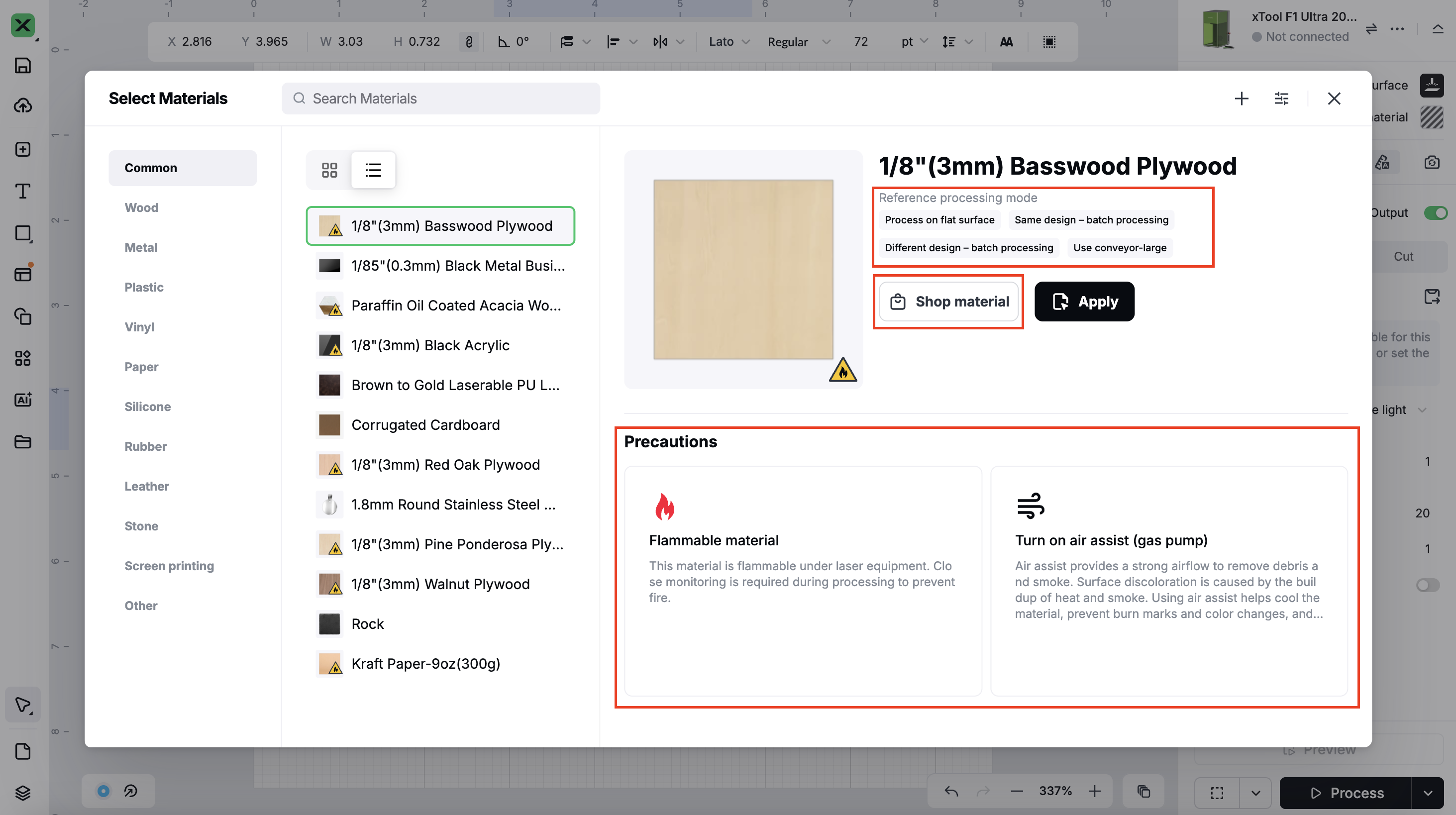
- When selecting a material, you can view the recommended processing modes for that material, as well as important usage notes. You can also place an order for the selected material if needed. We will continue to verify and update the usage notes to ensure they remain accurate and helpful.
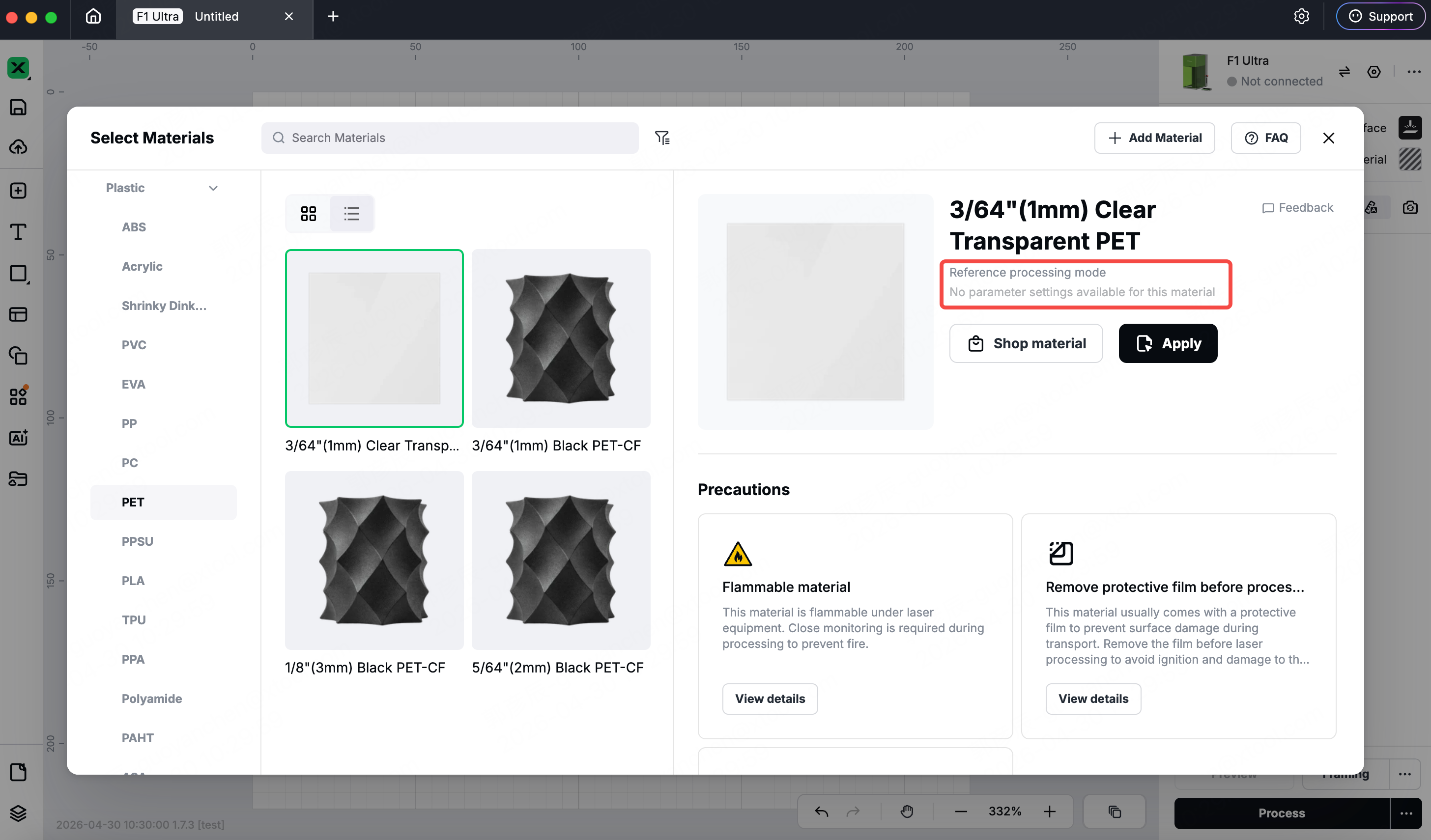
- If there are currently no recommended parameter settings for the selected material on the current device, the following message and layout will be displayed. You can also use the filter to quickly narrow down the results.
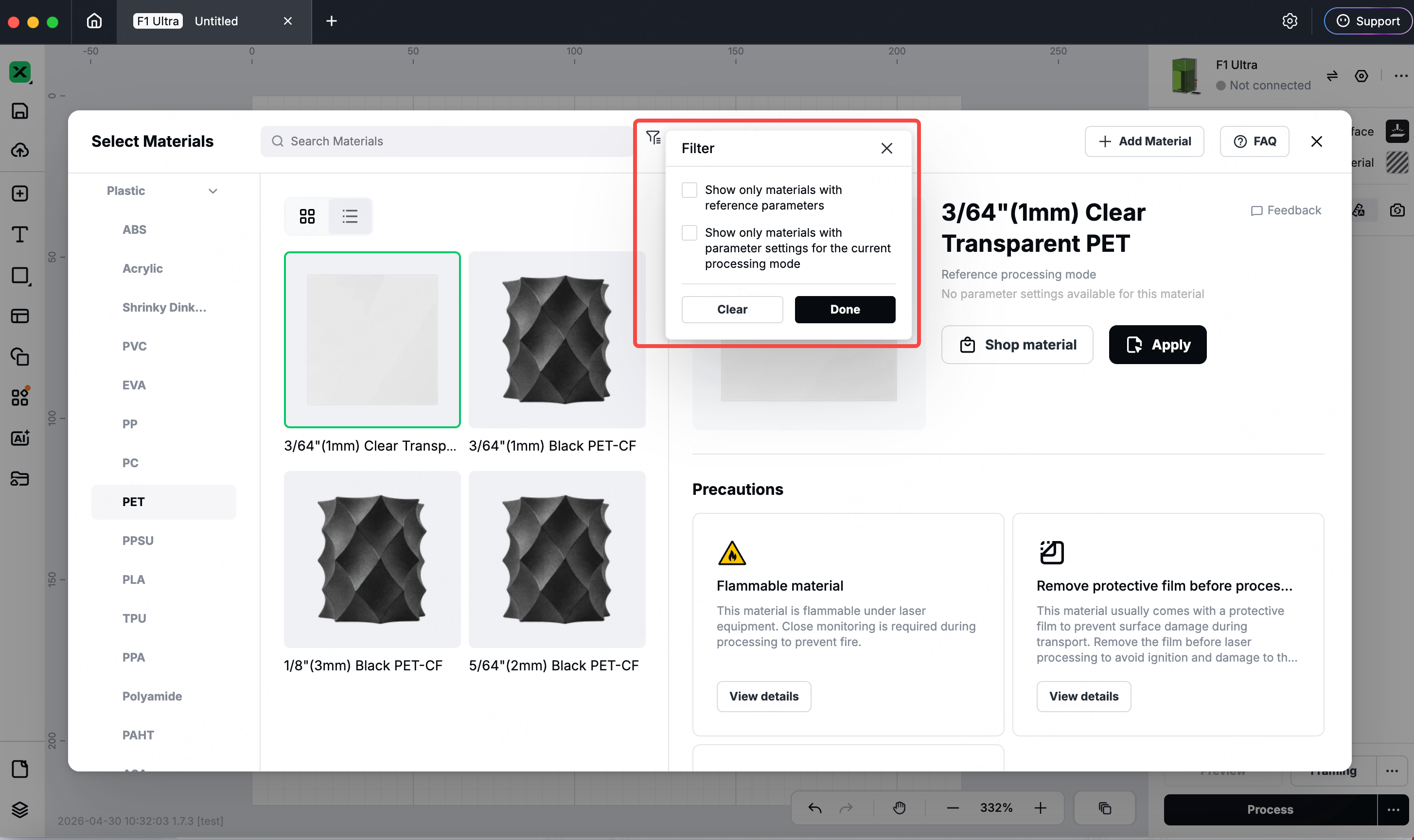
- Filter Materials:
You can filter materials based on two dimensions:
- Show only materials with recommended parameters:
This does not distinguish between processing modes. In some cases, the currently selected processing mode may not have recommended parameters, so you may need to switch to the recommended processing mode to view them. - Show only materials with recommended parameters for the current processing mode:
This will display only the materials that have recommended parameters for the currently selected processing mode.
- Search Materials:
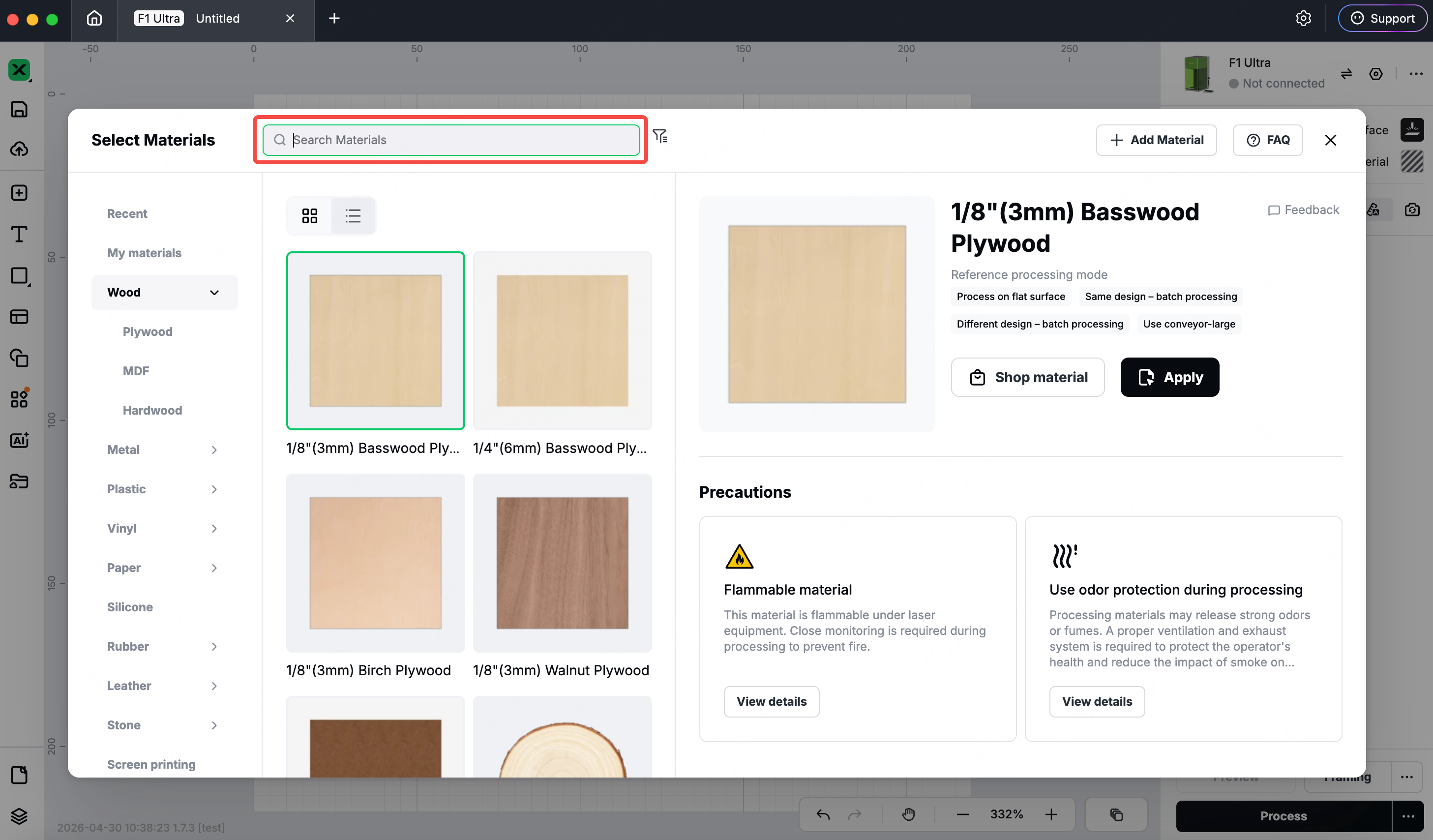
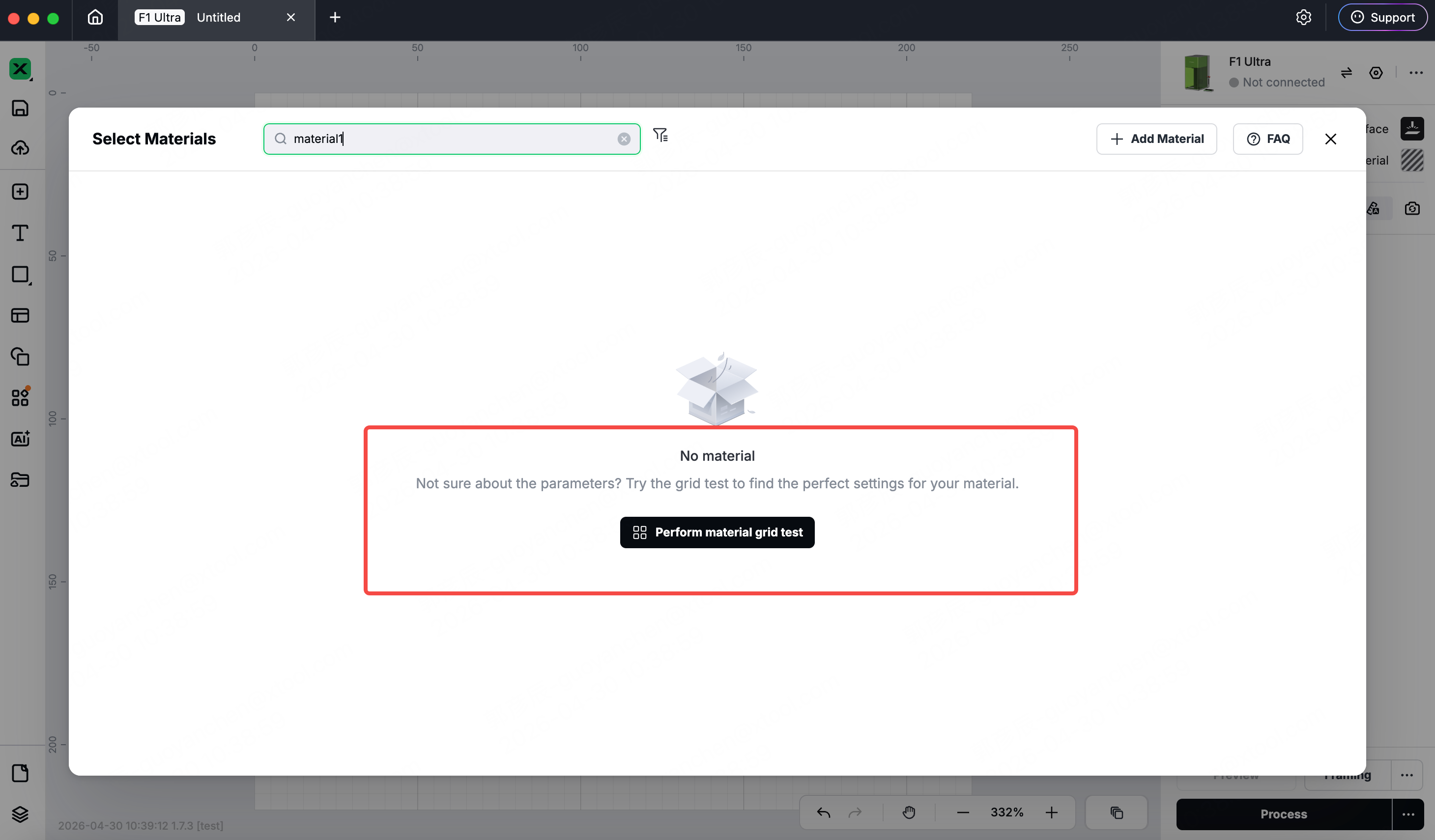
- You can search for materials using keywords in the material name. If a material cannot be found, it may not yet be included in the material library or may be listed under a different name. In such cases, it is recommended to perform a Material Grid Test to find the optimal parameter settings.
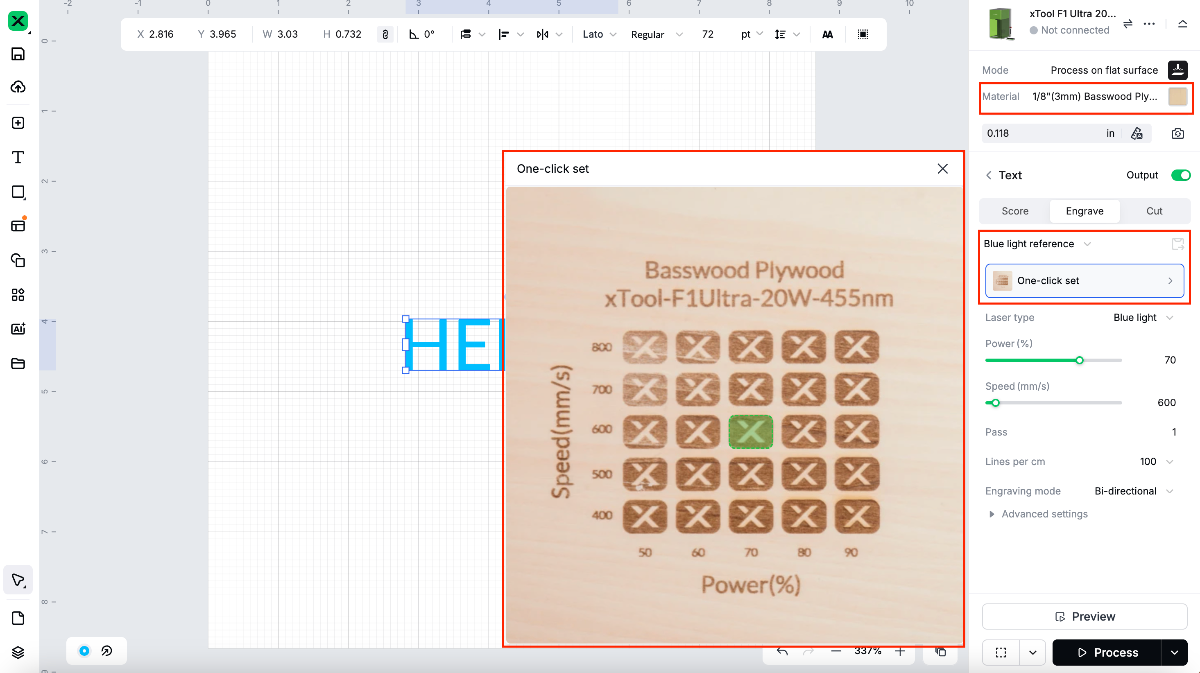
- Apply Material – After selecting the material you want to use, the workflow will vary:
- If the material shows large variations in processing results, you’ll see a grid test matrix with sample effects. Simply click on the effect you like to apply its settings instantly.
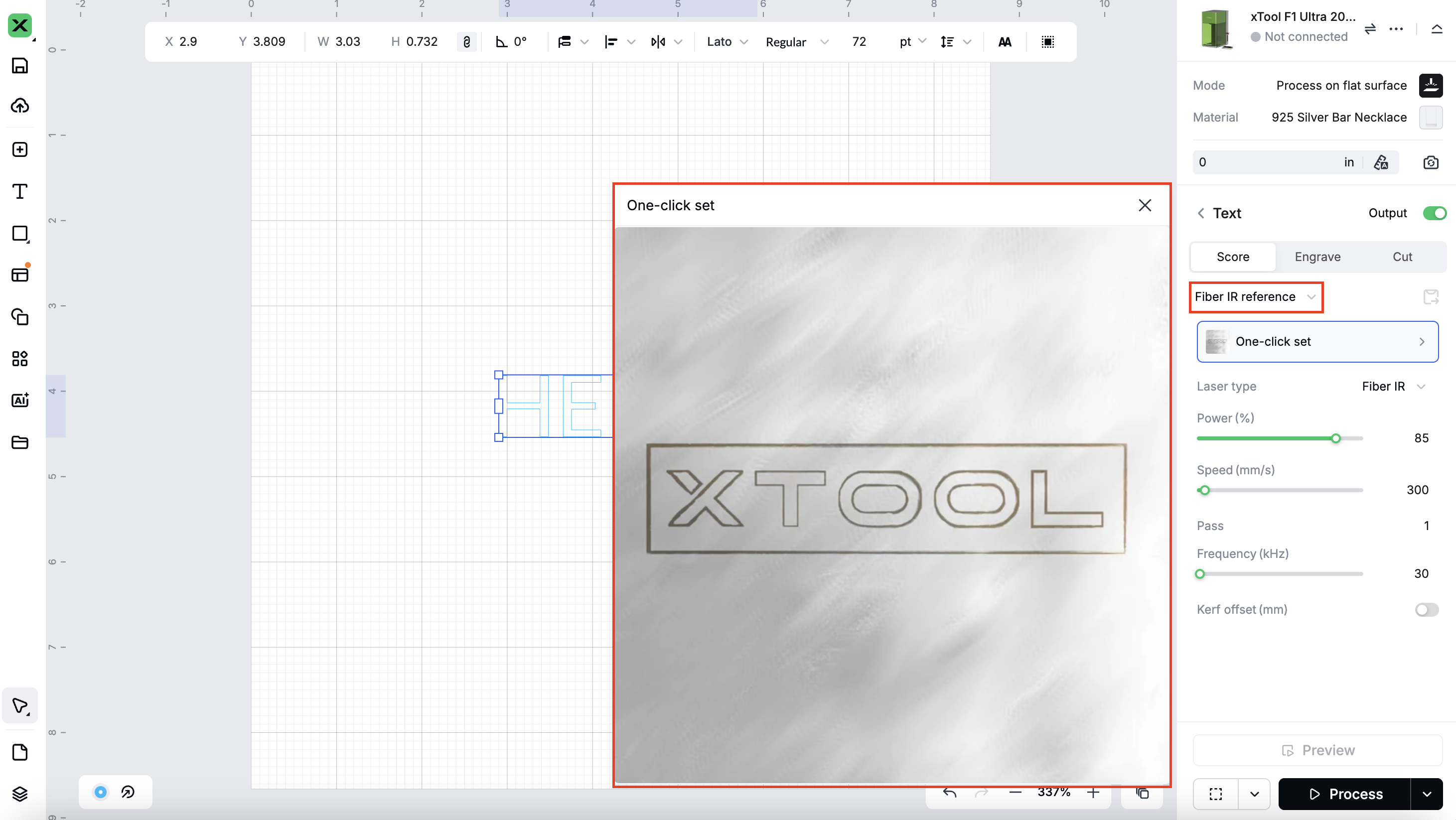
- If the material shows only small variations in results, we’ll provide a single set of recommended parameters and an accompanying sample image.
Recommended version: xTool Studio 1.0 or above.
Preview
Was this lesson helpful?
Lesson 5 / 8
Next Lesson
How to Perform an Array Test on a Material
5 min

