
Upgrade the Firmware for xTool F1
Important things to know beforehand
- It is recommended to connect your machine to your computer with a USB cable for the upgrade.
- During the upgrade, ensure that the power supply, Internet, and USB connection are stable and secure.
- Keep your computer in an active state during the upgrade. Do not let it go into sleep, hibernate, or shutdown state.
- During the upgrade, do not turn off xTool F1 or its accessories.
Upgrade the firmware
(1) Ensure that your computer is connected to the Internet. Open XCS on your computer, and then connect xTool F1 to XCS via a USB cable.
(2) In the top-right corner of XCS, click the Settings icon  next to the image of xTool F1.

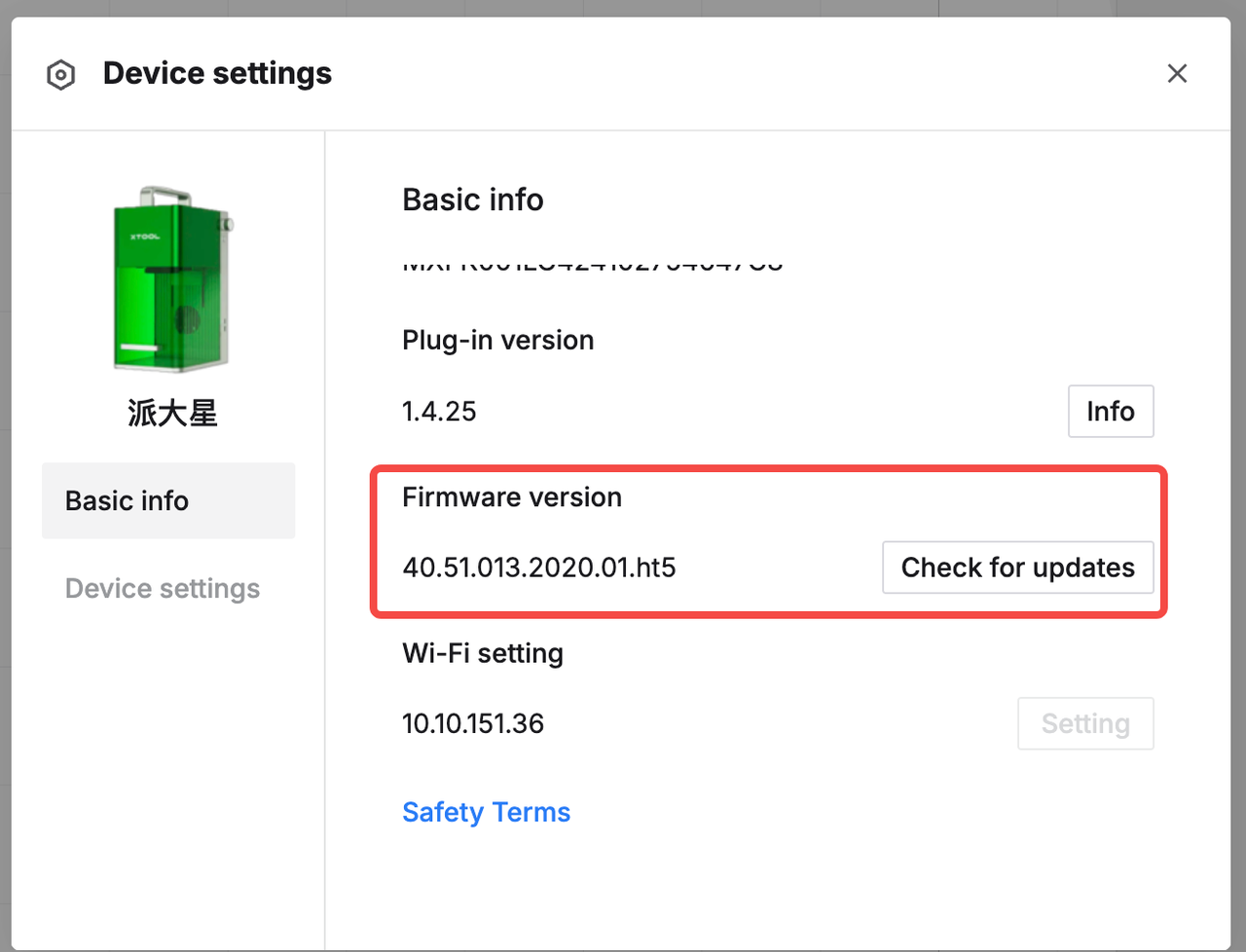
(3) On the pop-up Device settings window, click Check for updates under Firmware version. If a new version is found, update the firmware.
Note:
· XCS downloads the firmware installation package first, and then automatically installs it on xTool F1.
· During firmware installation, xTool F1 will be disconnected for a while and reconnected when the installation is complete.
How to deal with firmware upgrade failure
1. Check the firmware version
Note: Using the USB cable provides a more stable connection. If you are using Wi-Fi connection, the firmware update may be interrupted due to an unstable network.

